
Using the API to Sync Employee Data to CultureBot
If your HR system can export a CSV on a schedule, you can keep employee profile data in CultureBot current automatically. This guide is written for whoever owns that integration, usually an IT or HRIS team.
Coming from Workday? The Workday guide walks the whole setup end to end, no code required.
Each row is matched to an existing user by email address, and updates that person's birthday, work anniversary, title, department, location, or manager. It only touches people who are already in your connected Slack or Microsoft Teams workspace. It never creates or deletes accounts, and anyone not in your file is left alone.
Two rules worth knowing up front. A value overwrites, but a blank cell is ignored, so a blank cell is always safe and an update can never wipe out existing data. And every row is all or nothing: if one thing in a row is wrong, nothing from that row is applied and the row comes back to you with a reason.
Get your API key
In the CultureBot web app, go to Directory, click Import user data, choose API, then Generate new key. The key is displayed once, so copy it straight into your secrets manager.
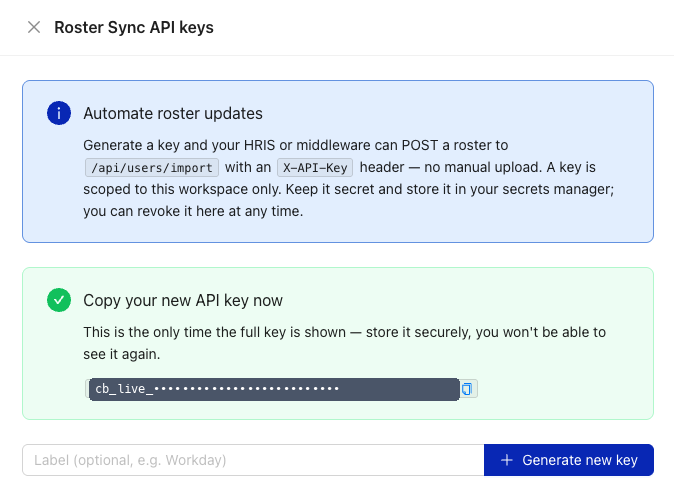
A key belongs to a single workspace and authorizes only this one update operation. It cannot read data back out, it cannot create or delete users, and you can revoke it at any time from the same screen.
The endpoint
POST https://getculturebot.com/api/users/import
Content-Type: multipart/form-data
X-API-Key: cb_live_xxxxxxxxxxxxxxxxxxxxxxxxxxxxxxxx
| Form field | Required | Description |
|---|---|---|
file |
Yes | Your CSV file. |
dry_run |
No | true validates your file and reports back without writing anything. Defaults to false . |
Build your CSV file
The only required column is email . Everything else is optional: birthday , anniversary , title , department , location , and manager_email .
- Include only the columns you want to update. A file with nothing but
emailandbirthdayis perfectly valid. - Any column we do not recognize is ignored, and we list it back to you in the response so you can spot a typo in a header.
manager_emailhas to match another user in the same workspace.
email,birthday,anniversary,title,department,location,manager_email
jane@company.com,1990-05-15,2020-03-01,Staff Engineer,Engineering,NYC,dana@company.com
Test before you apply
Send your file with dry_run=true first. A dry run returns exactly the same report as a real call, so you can see precisely what would happen before anything is written.
curl -X POST https://getculturebot.com/api/users/import \
  -H "X-API-Key: $CULTUREBOT_API_KEY" \
  -F "file=@users.csv" \
  -F "dry_run=true"
When the report looks right, send it again without dry_run to apply the changes.
Read the response
A completed call returns 200 with a summary of what happened.
{
  "status": "partial",
  "updated_count": 27,
  "skipped_row_count": 8,
  "row_count": 35,
  "columns": {
    "matched": ["email", "birthday", "department"],
    "ignored": ["favorite_color"]
  },
  "dates": { "birthday": "month_first" },
  "skipped": [
    { "rows": [34], "email": "newhire@company.com",
      "code": "user_not_found",
      "message": "No user found with this email." }
  ],
  "import_run_id": "b5068e2c-2752-4af3-b423-f1a042e56be6",
  "dry_run": false
}
| Field | What it tells you |
|---|---|
status |
succeeded when nothing was skipped, partial , or failed when nothing was applied. |
updated_count |
How many distinct users were updated. |
skipped_row_count |
Rows not applied. This plus updated_count always equals row_count . |
columns |
Which of your columns we used, and which we ignored. |
dates |
The date order we read for each date column. See below. |
skipped |
One entry per problem. The rows numbers are spreadsheet line numbers with the header as line 1, so they match what you see in Excel. |
import_run_id |
A unique id for the run, for your records and our audit log. |
Each entry in skipped carries a code . Build your error handling around the code rather than the message, since wording can change.
| Code | What happened |
|---|---|
user_not_found |
No user has this email address. |
missing_email |
The row has no email address. |
duplicate_email |
That email appears more than once in your file, so no row for it was applied. |
invalid_date |
A date could not be read. The response names the field and the value. |
manager_not_found |
The manager_email matched no user in your workspace. |
nothing_to_update |
The row matched a user but carried no data to change. |
internal_error |
Something failed on our side. The row was not applied and our team is notified. |
Treat user_not_found as routine rather than a failure. A new hire shows up in CultureBot once they have synced from your Slack or Teams workspace, usually the next day, and your next scheduled run picks them up. Anything else in skipped is a data problem worth raising with whoever owns the export.
Two other responses are worth handling: a 400 means the file was missing or could not be read, and a 401 means the API key was missing, unknown, or revoked.
How dates are read
Common formats are accepted and normalized, including 1990-05-15 , 05/15/1990 , 15 May 1990 , and Excel serial numbers.
A numeric date like 05/06/1990 is ambiguous on its own, so rather than guessing row by row, we settle the order once per column by looking at your whole file. A single value with a day above 12 decides it for that entire column. Whichever order we used comes back in the dates field, so it is never a silent assumption you have to reverse engineer.
Security
- All requests are HTTPS only.
- We store only a SHA-256 hash of your key, never the raw value.
- Uploaded files are processed in memory and are not retained as files.
- Every run is logged with its
import_run_id, the key that made it, and the record counts. - Rotate whenever you like by generating a new key and revoking the old one.
Need help? Reach out to support@getculturebot.com for help troubleshooting.