
Read and Reply to Engagement Pulse Comments
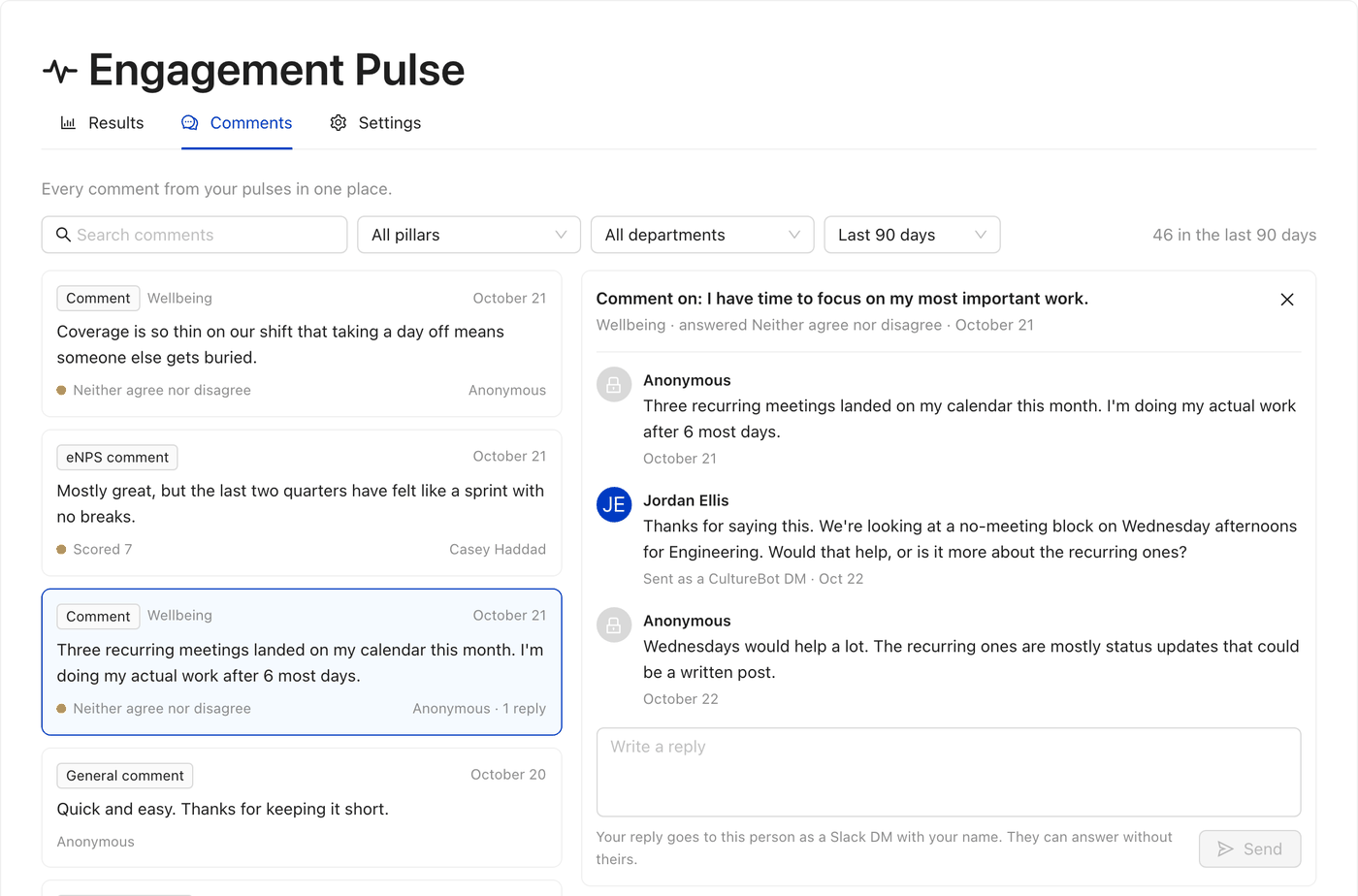
Engagement Pulse comments are where people tell you what's actually behind their scores. With replies, they become a conversation. A full admin can answer any comment, and the person who wrote it can answer back, while their name stays hidden unless they chose to share it.
Teams use replies to:
- Bring leadership into the conversation. Have your CEO or another executive answer comments about company direction themselves, so people hear it from the source.
- Close the loop on concerns. HR can thank someone for raising a workload or pay concern, ask a follow-up question, and say what happens next.
- Turn a vague comment into something you can act on. "Meetings are a mess" becomes useful once you can ask which meetings and what would help.
- Show that feedback is read. When people see a leader respond, they're more likely to keep answering honestly.
Please note: only full admins can read comments in CultureBot and reply to them. Engagement Pulse is available on the Pro plan, and to any workspace with fewer than 25 people, for Slack workspaces.
How Anonymity Works at Every Step
- When someone comments, their name is left off unless they tick Show my name. It's off by default.
- In the Comments channel and the Comments tab, an unsigned comment shows no name. In CultureBot it reads Anonymous. Departments are never shown on a comment.
- When you reply, CultureBot delivers your reply to the right person without ever showing you who they are. Your own name is always shown on your reply.
- When they answer back, their answer stays unsigned too, unless they signed the original comment or type their name themselves.
- Exports never include comments or names. Export CSV on Results only holds scores.
The Full Workflow
1. Someone Leaves a Comment in Slack
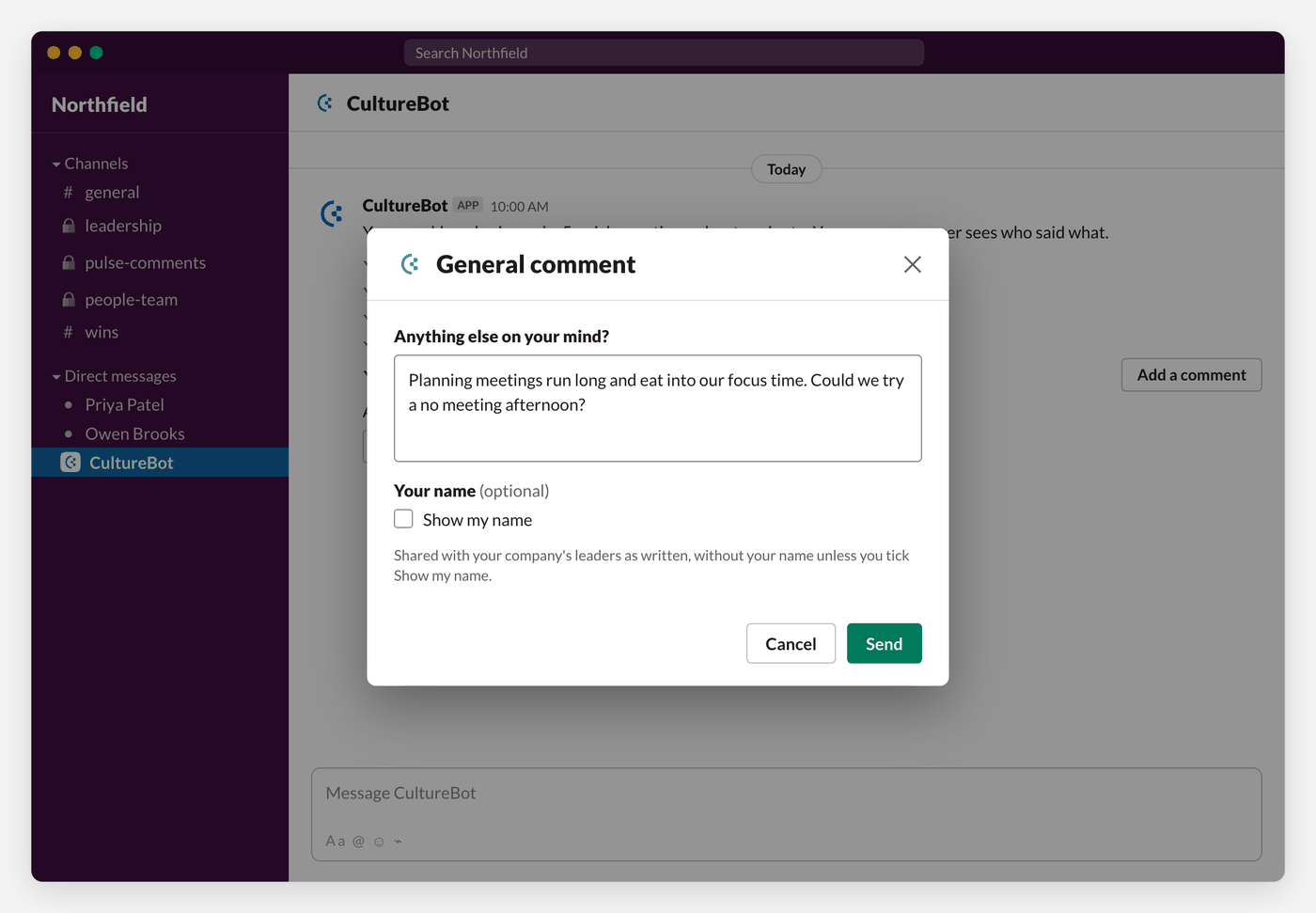
In their pulse DM, people can comment in three places:
- Add a comment under the statement they last answered, to explain that answer.
- Tell us why after the eNPS question.
- Send a general comment or question once they finish the pulse, for anything else on their mind.
Each opens a short form that says the comment is "Shared with your company's leaders as written, without your name unless you tick Show my name."
2. The Comment Arrives
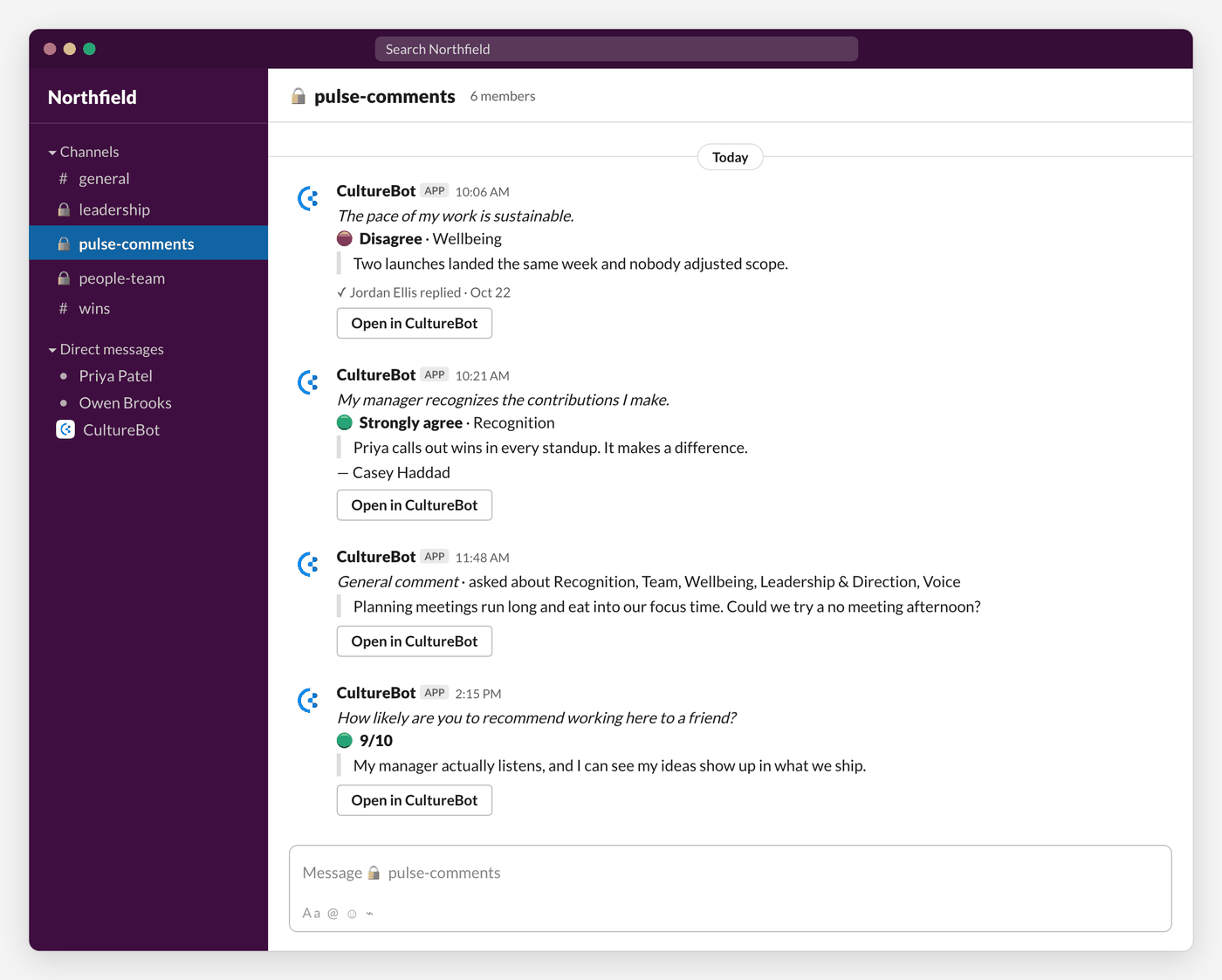
If you picked a Comments channel in Settings, the comment posts there right away with the statement, the answer, the pillar, and an Open in CultureBot button. Anyone you add to that channel can read it. See Read Your Engagement Pulse Results for who to add.
Every comment also appears on the Comments tab in CultureBot, under Pulse. Search, or filter by pillar, department, or period, to find what you're looking for. Each comment is tagged Comment, eNPS comment, or General comment.
3. You Reply
- Open the Comment: In CultureBot, go to Pulse, then the Comments tab, and click the comment. You can also click Open in CultureBot on the Slack post.
- Write Your Reply: Type in the Write a reply box.
- Send It: Click Send. Replies can't be edited or deleted after they send, so read it over first.
Once someone replies, the Slack post in the Comments channel updates to show who replied and when, so others on the team know it's been answered.
4. They See Your Reply
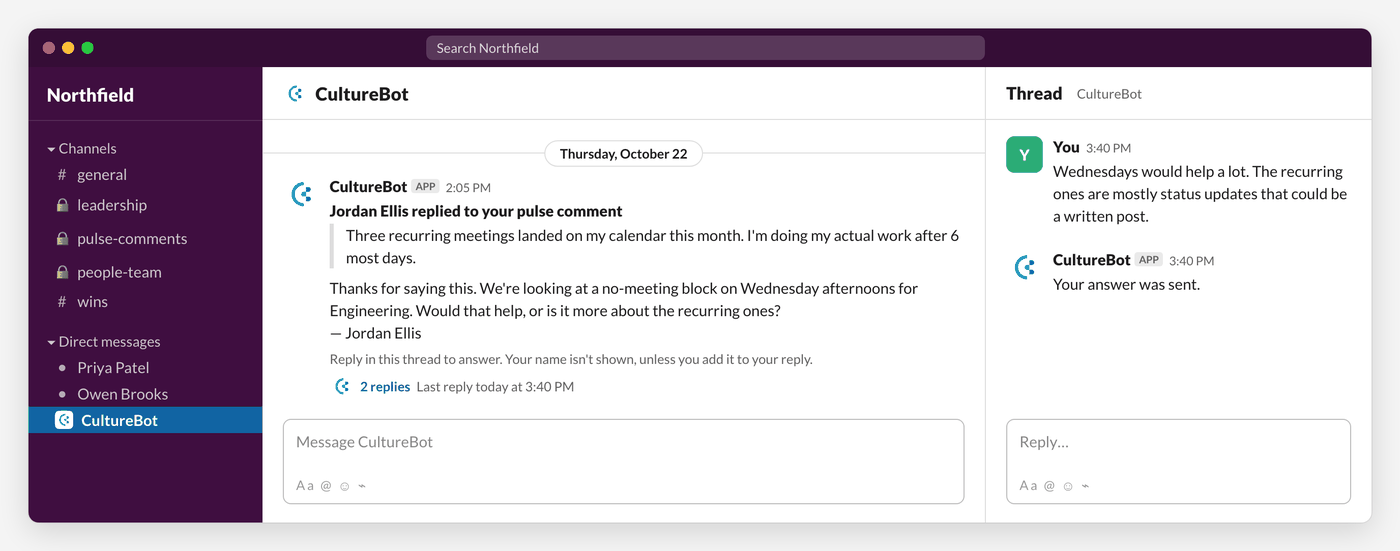
The person gets a Slack DM from CultureBot that says you replied, quotes their original comment, and shows your reply with your name. It tells them they can answer in the thread and that their name isn't shown unless they add it.
5. They Answer Back
They reply in that DM thread. CultureBot confirms "Your answer was sent."
6. You're Notified
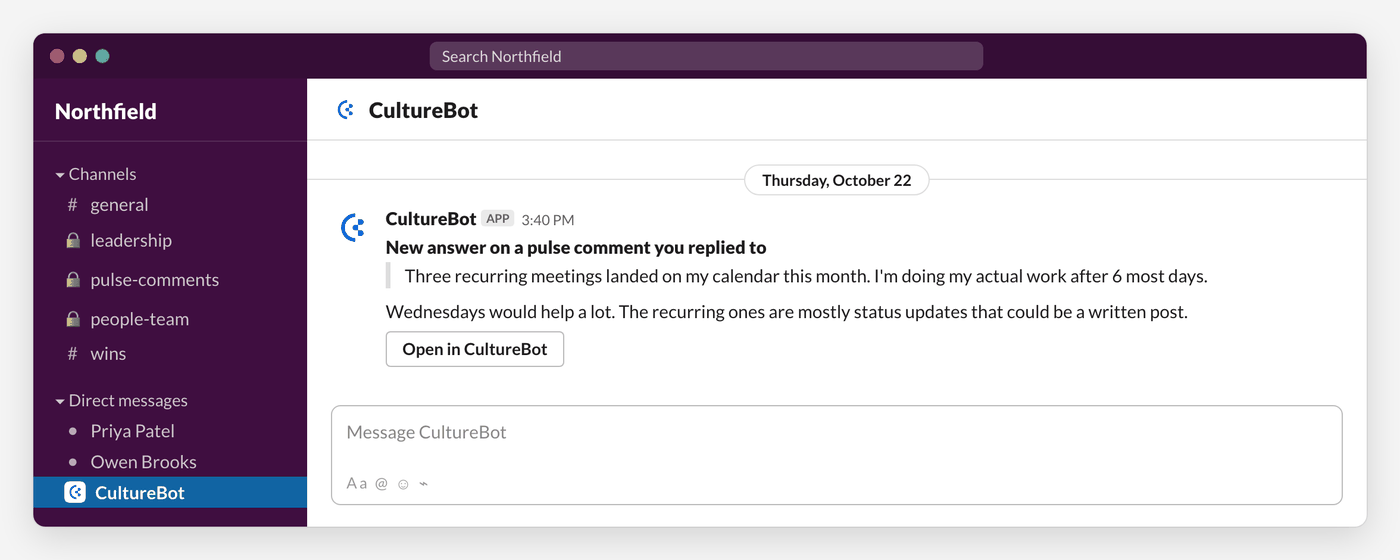
Every full admin who has replied to that comment gets a DM with the answer and an Open in CultureBot button. The whole conversation shows on the Comments tab, where you can keep replying.
Good to Know
- Reply from the Comments tab, not Slack. Replies typed in a Slack thread in the Comments channel, or under the admin DM, don't reach the person.
- Any full admin can join. Several leaders can reply in the same conversation, each under their own name.
- There's no time limit. You can reply to a comment after its pulse closes, or even while the pulse is paused or turned off.
- Test pulses don't count. Comments from a test pulse never appear on the Comments tab and can't be replied to.
New to Engagement Pulse? Start with Set Up Engagement Pulse.