
Read Your Engagement Pulse Results
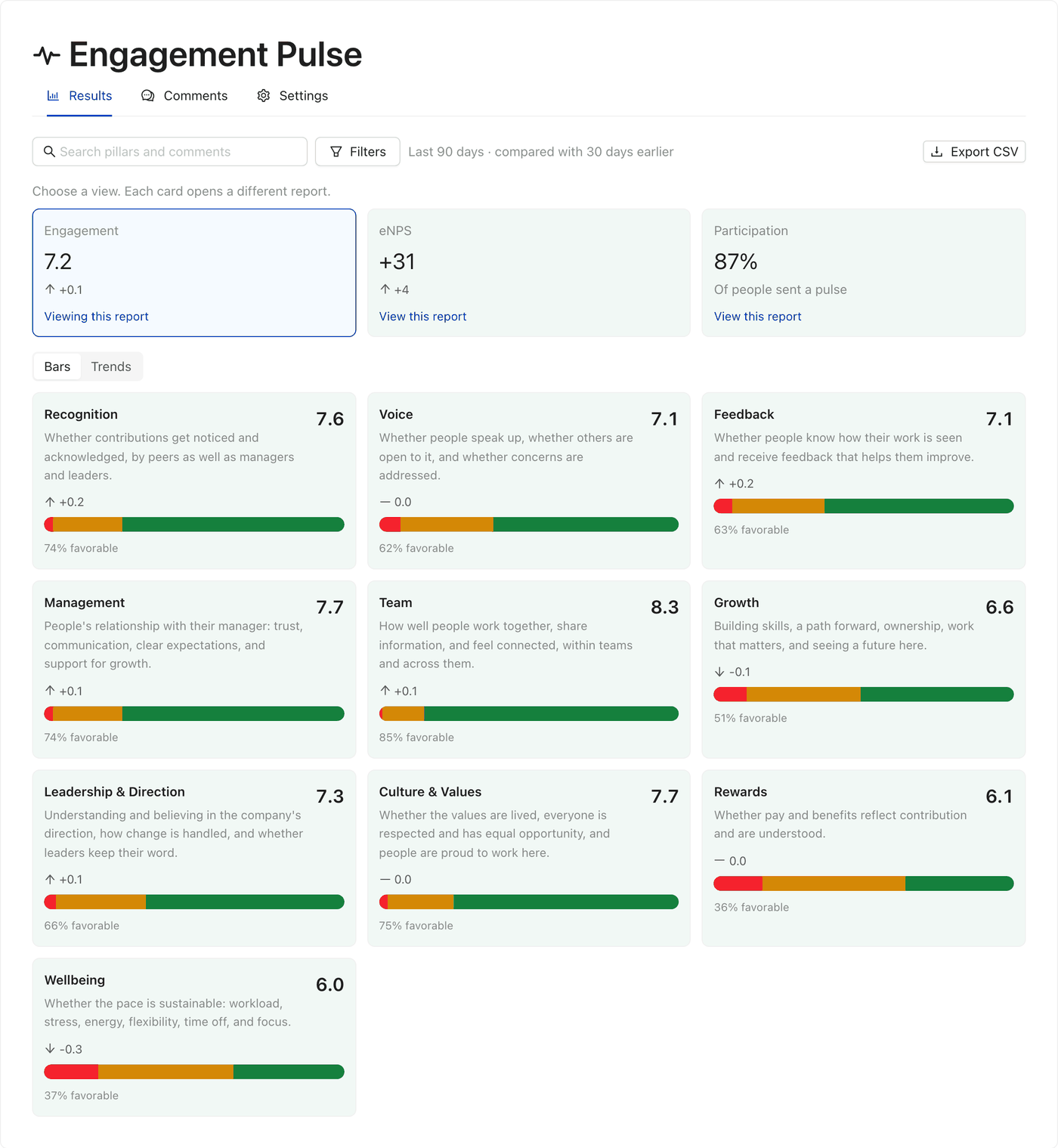
Engagement Pulse results show how your company feels across ten pillars, how that's changing, and where it differs by department. You can share a summary with anyone you choose in Slack, while full admins get the complete picture in CultureBot.
Please note: Engagement Pulse is available on the Pro plan, and to any workspace with fewer than 25 people, for Slack workspaces.
Two Ways to See Results
| Private Slack channels (optional) | Pulse in CultureBot | |
|---|---|---|
| Who can see it | Anyone you add to the channel | Full admins only |
| Scores | A scorecard after each pulse and every month | All scores, with every statement |
| Comments | Each comment as it comes in | Every comment, searchable |
| Reply to comments | No | Yes |
| Filter by department | No | Yes |
| Trends over time and Export CSV | No | Yes |
Share Results with Your Leaders in Slack
Pulse can post to private Slack channels so your executive team, HR, leadership, or managers stay informed without needing admin access. Both channels are optional, and you can use the same channel for both.
- Create a Private Channel: In Slack, create a private channel, such as #pulse-leadership, and add the people you want to see results.
- Invite CultureBot: In that channel, type /invite @CultureBot. CultureBot can't post to a private channel it hasn't been invited to.
- Pick the Channel in Settings: In CultureBot, go to Pulse, then Settings. Under Results, choose a Comments channel, a Readouts and monthly summaries channel, or both.
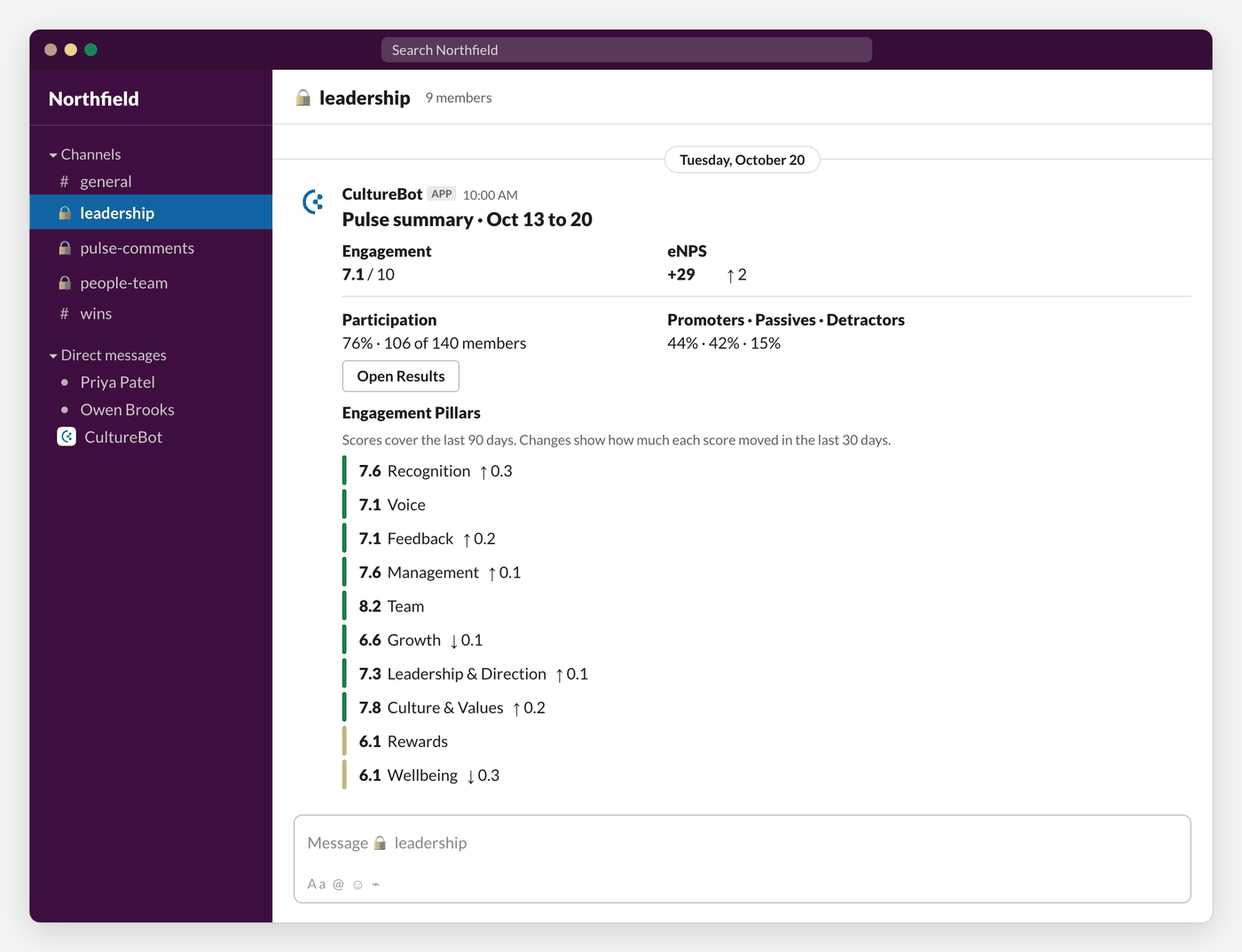
- Comments receives every comment the moment it's sent. A name appears only if the person chose to share it.
- Readouts and monthly summaries receives a Pulse summary when each pulse closes and on the first weekday of each month. It shows the engagement score, eNPS, participation, and a line for each pillar, with how much each moved in the last 30 days.
Please note: channel members who aren't full admins can read these posts, but buttons such as Open in CultureBot and Open Results only work for full admins. To reply to comments or see results by department, a person must be a full admin. See Full Admins v. Partial Admins.
Read Your Results in CultureBot
In CultureBot, go to Pulse, then Results. Three cards sit at the top. Click one to switch the view:
- Engagement: the average of your pillar scores, on a 1 to 10 scale, with a line for each pillar. Click a pillar to see every statement it asks about.
- eNPS: the percentage of promoters (9 or 10) minus the percentage of detractors (1 to 6), from -100 to +100, with the comments people left about their score.
- Participation: the share of people sent a pulse who answered at least once. Names are never listed.
Scores cover the last 90 days unless you change the period.
See How Results Change Over Time
- Change arrows on every score show how it moved compared with 30 days earlier.
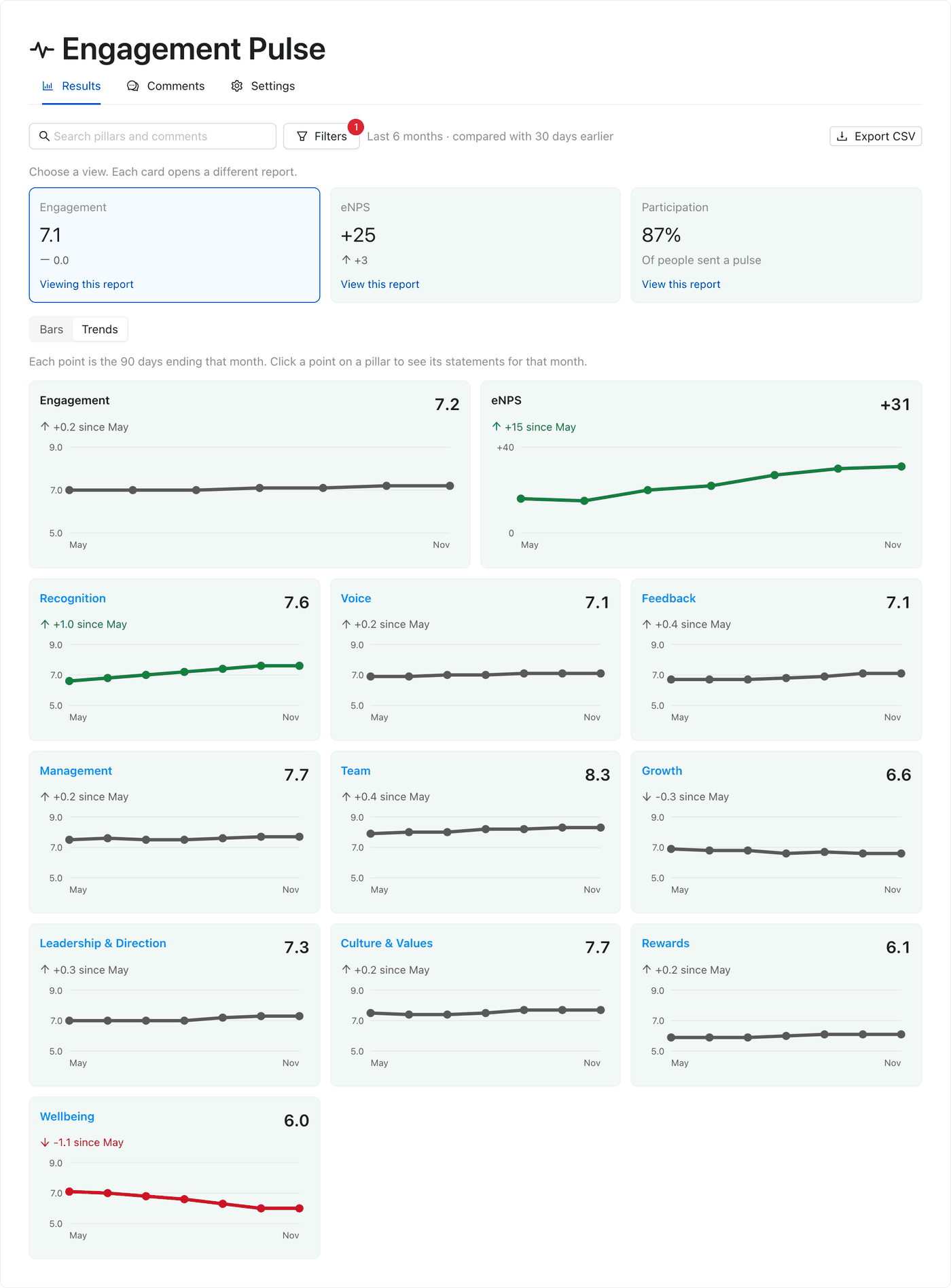
- Trends: switch from Bars to Trends on the Engagement view. Each point is the 90 days ending that month. Click a point on a pillar to see its statements for that month.
- Date range: click Filters and choose Last 90 days, This quarter, Last 6 months, Last year, or Custom.
See Results by Department
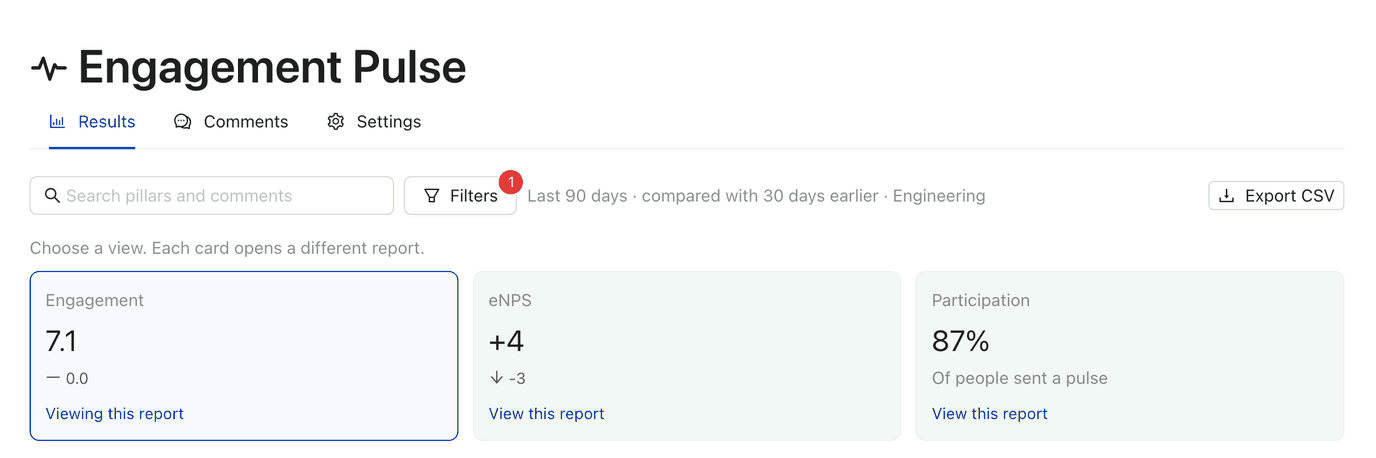
- Open Filters: On the Results tab, click Filters.
- Choose a Department: Under Department, change Whole company to the department you want. Scores and pillars update to that department.
- Clear It: Click Clear all filters to go back to the whole company.
To protect privacy, a department appears in the list only once at least 5 of its people have answered in the period. Participation always stays company-wide. Departments come from your employee directory, so keep it current through importing employee data.
Why a Score Is Hidden
A score only shows once at least 5 different people have answered, or 8 for a few sensitive statements, such as those about pay and stress. Until then it shows how many more responses it needs, with a progress bar. With fewer than 10 people in your pulse, most scores stay hidden.
Search and Export
- Search pillars and comments finds a pillar, statement, or eNPS comment by keyword.
- Export CSV downloads the scores you're viewing. It never includes comments or names.
To answer the people behind the comments, see Read and Reply to Engagement Pulse Comments.