
Funding Your Peer Rewards Balance
Understanding the Tango Admin Role for Peer Rewards
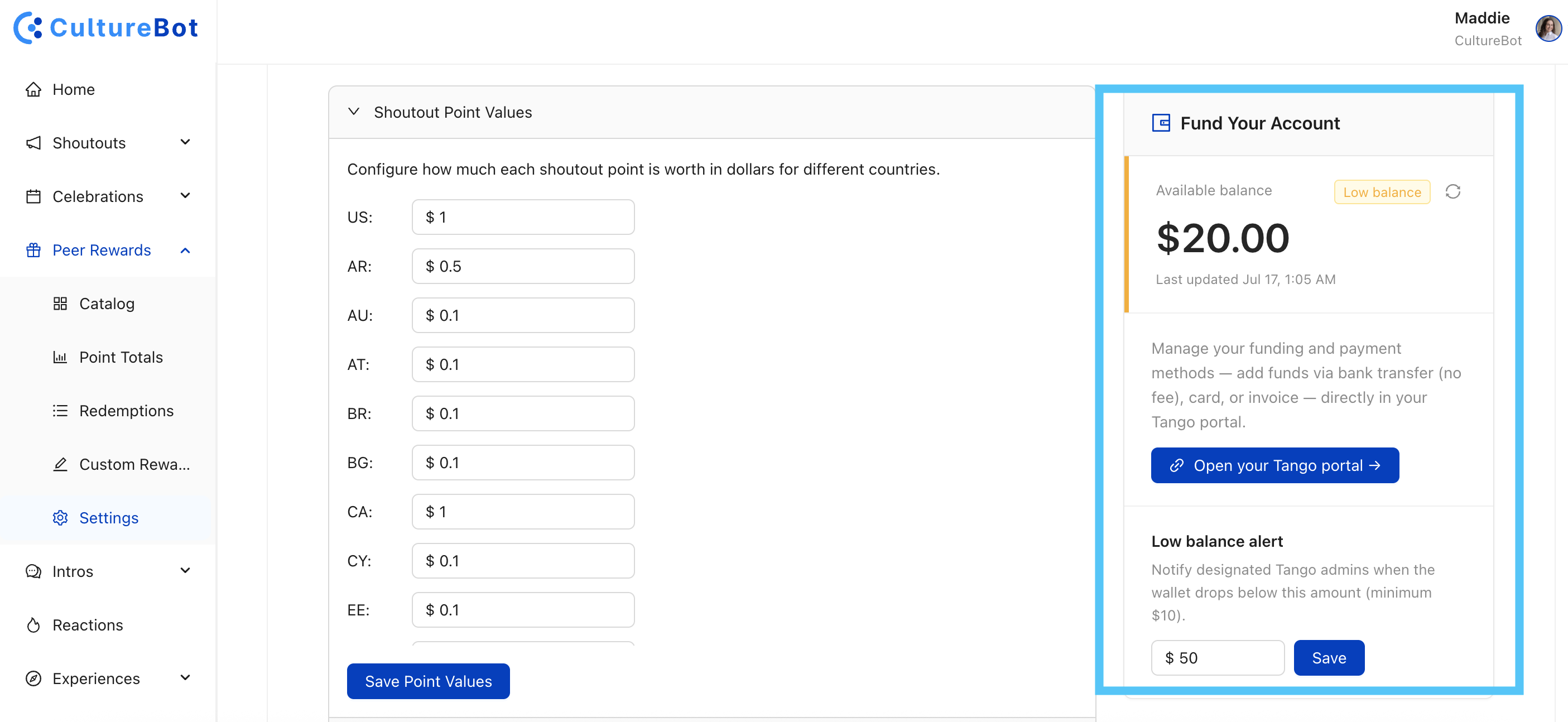
If your workspace uses gift cards with Peer Rewards, all full CultureBot admins can now see the current gift card balance directly in the web app under Peer Rewards > Settings.
To manage funding for that balance, workspaces can also designate a Tango admin. Here's how that role works.
Setting up a Tango admin
CultureBot support needs to set up a Tango admin on your account before funding can be managed directly. Email support@getculturebot.com to get started, with the subject line "New Tango Admin."
Support will respond shortly, and you'll receive an email from noreply@tangocard.com with the subject "Welcome to Tango!" Follow the instructions in that email to complete your account setup, which includes creating a password and setting up a multi-factor authentication (MFA) method.
What a Tango admin can do
Once your account is set up, as a Tango admin you will be able to log in to the portal any time to:
• View order history for gift cards ordered and completed under your company account
• Update payment methods and add funds to your account
• View your current balance directly in Tango
• View funding history
How to add funds to your account
• Log in to Tango at tango-portal.tangocard.com/login
• Select Payment Methods
• Confirm you have the payment method you'd like to use set up (credit card or ACH bank transfer)
• Click "Add or Transfer Funds" in the top right of the Payment Methods page
• Select how much you'd like to add, confirm your payment method, and confirm the deposit
What happens if funds run low
If a peer reward redemption fails because of insufficient Tango funds, CultureBot sends a Slack or Teams message to your Tango admin alerting them of low funds. The Tango Admin can designate the low balance alert in your Peer Rewards > Settings.
Need a Tango admin set up for your workspace?
Email support@getculturebot.com with the subject line "New Tango Admin" and we'll get it configured.