
Overview: Setting Up Shoutouts and Custom Values
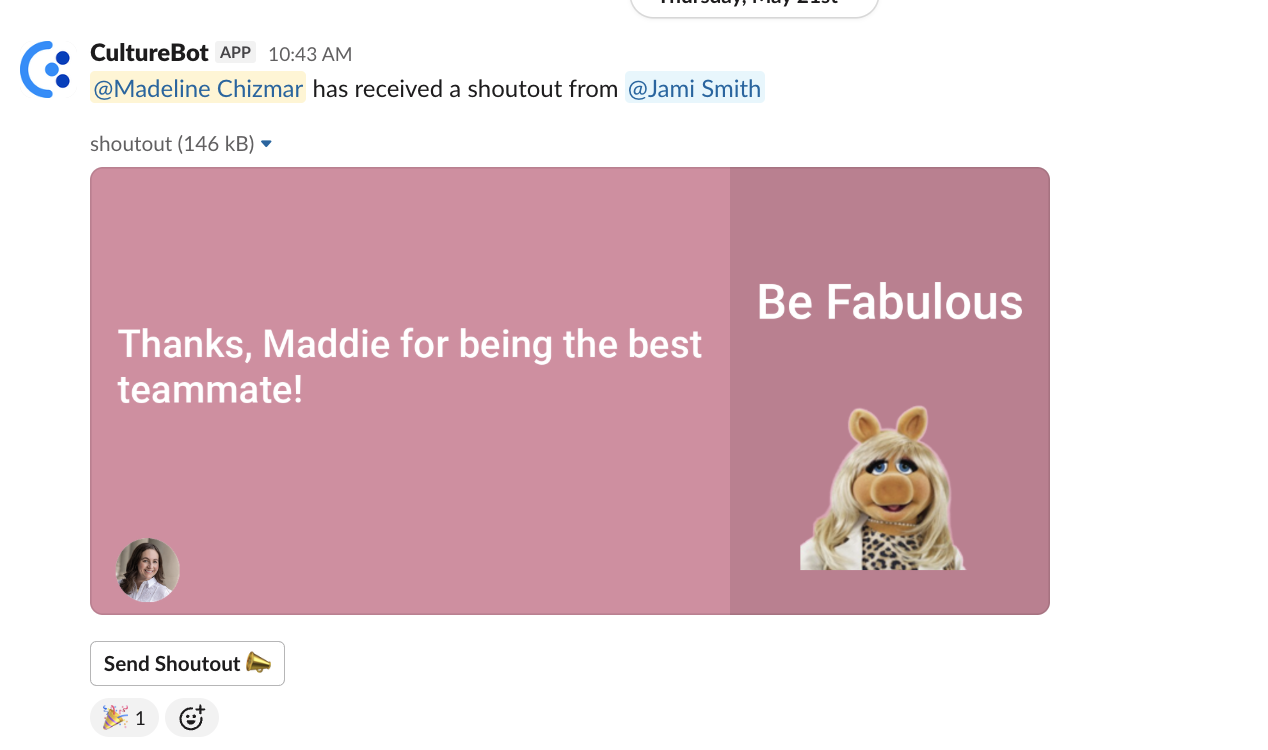
Shoutouts let anyone thank a teammate in a public channel, with a branded image the whole team sees. When you turn your company values into shoutout types, every shoutout also shows which value someone lived out, so recognition reinforces what your culture is built on.
Please note: Shoutouts are included on Standard and Pro plans. You need full admin access to customize them.
How Shoutouts Work
Shoutouts work as soon as CultureBot is installed. Anyone can send one:
- In Slack: Type
/shoutoutin a channel. - In Microsoft Teams: Click + in the message box and choose CultureBot.
- In the web app: Go to Shoutouts, then Feed, and click Give a Shoutout.
The sender picks a shoutout type (such as Thank You or Team Player), the people to recognize, a channel, and a message. If your team uses Peer Rewards, they can add points too. See Setting Up & Sending Shoutouts.
Step 1: Turn Your Values Into Shoutout Types
CultureBot comes with 11 ready-made shoutout types. Replace or add to them with types named after your own values, such as "Customer Obsessed" or "Own It".
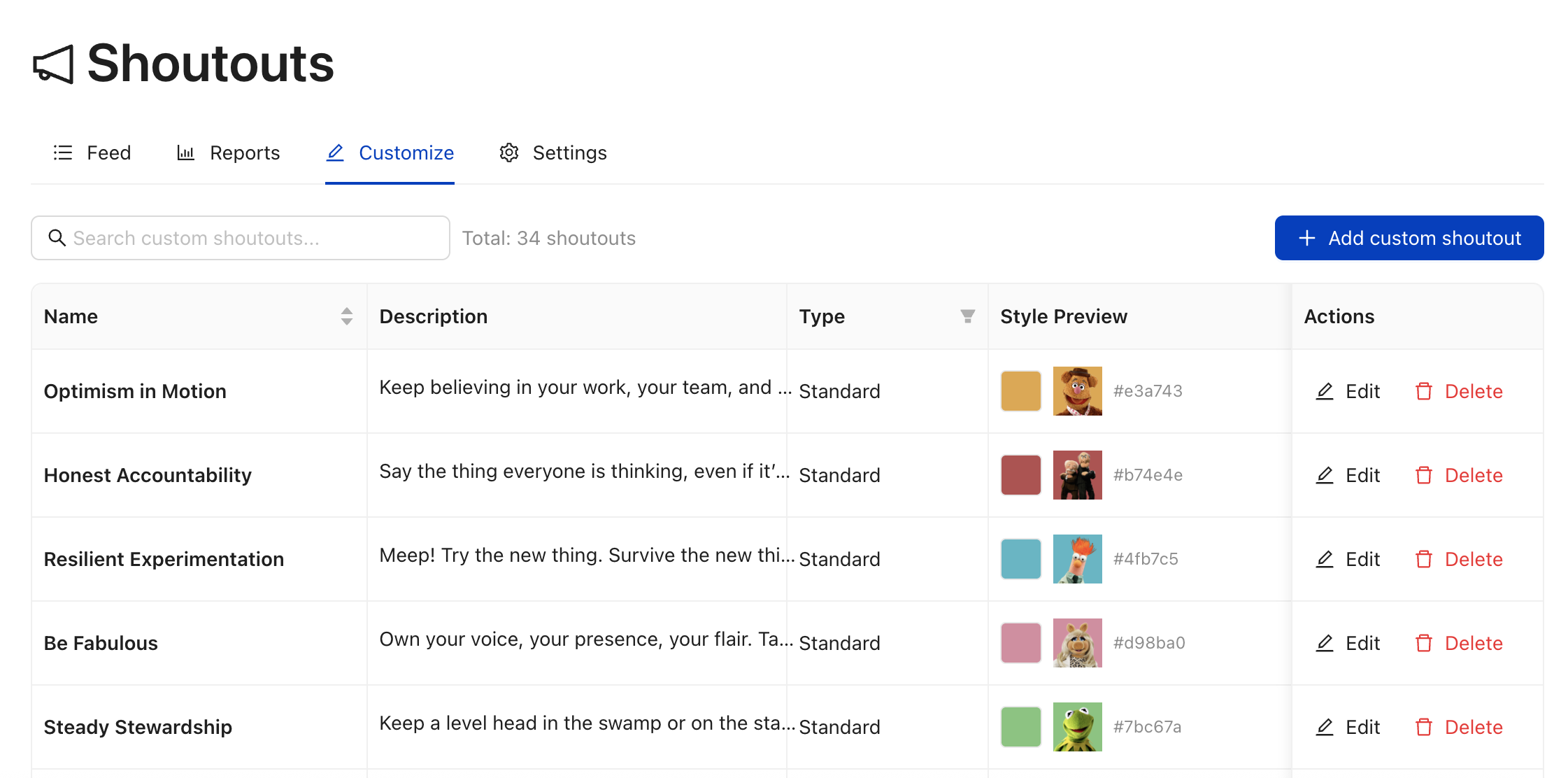
- Open Customize: In the web app, go to Shoutouts, then Customize, and click Add custom shoutout.
- Name It After A Value: Enter the value as the name, and a short description of when to use it so people pick the right one.
- Choose The Look: Select Standard to pair an icon with a color, or Full Background to use your own branded image (1500 x 700 pixels). See Creating Custom Shoutout Images for free templates.
- Save: The new type appears in everyone's shoutout menu right away.
To show only your values: go to Shoutouts, then Settings, open Notification Settings, and check Only show custom shoutouts. This hides all 11 ready-made types. If you want to keep one, such as Thank You, recreate it as a custom type first.
Step 2: Choose Your Settings
In Shoutouts, then Settings, under Notification Settings:
- Notify users via DM when they receive a shoutout so people never miss one.
- Allow shoutouts to be sent anonymously if you want to offer that option.
Step 3: Build the Habit With Shoutout Day
Shoutout Day reminds your team on a set day, for example every other Friday, to recognize someone. CultureBot posts a kickoff message in your channel, with optional midday and end-of-day nudges and private reminders for people who have not sent one lately. Set it up under Shoutouts, then Settings, then Shoutout Day Settings. See Shoutout Day.
Step 4: Test Before You Launch
Invite CultureBot to a private channel and send yourself a shoutout of each type to check how they look before announcing them to the team.
Where Recognition Shows Up
- The Shoutouts Feed: Everyone can browse recent shoutouts. The Values panel shows which shoutout types, and so which of your values, are recognized most. See How to Use the Shoutout Feed.
- Employee profiles: Each shoutout type someone receives becomes a badge on their profile. See Employee Profiles and Badges.
- Reports: Admins see totals, top givers and receivers, and top types under Shoutouts, then Reports.
Want shoutouts to come with points people can trade for gift cards or perks? See Intro to Peer Rewards.